
In this lesson you will
- Prepare the ROE worksheet with the right reason code
- Check insurable earnings and the issue deadline
- Save the ROE and export the ROE Web file
Before you start
Fill in the ROE
Step 1: Choose the employee, dates and reason
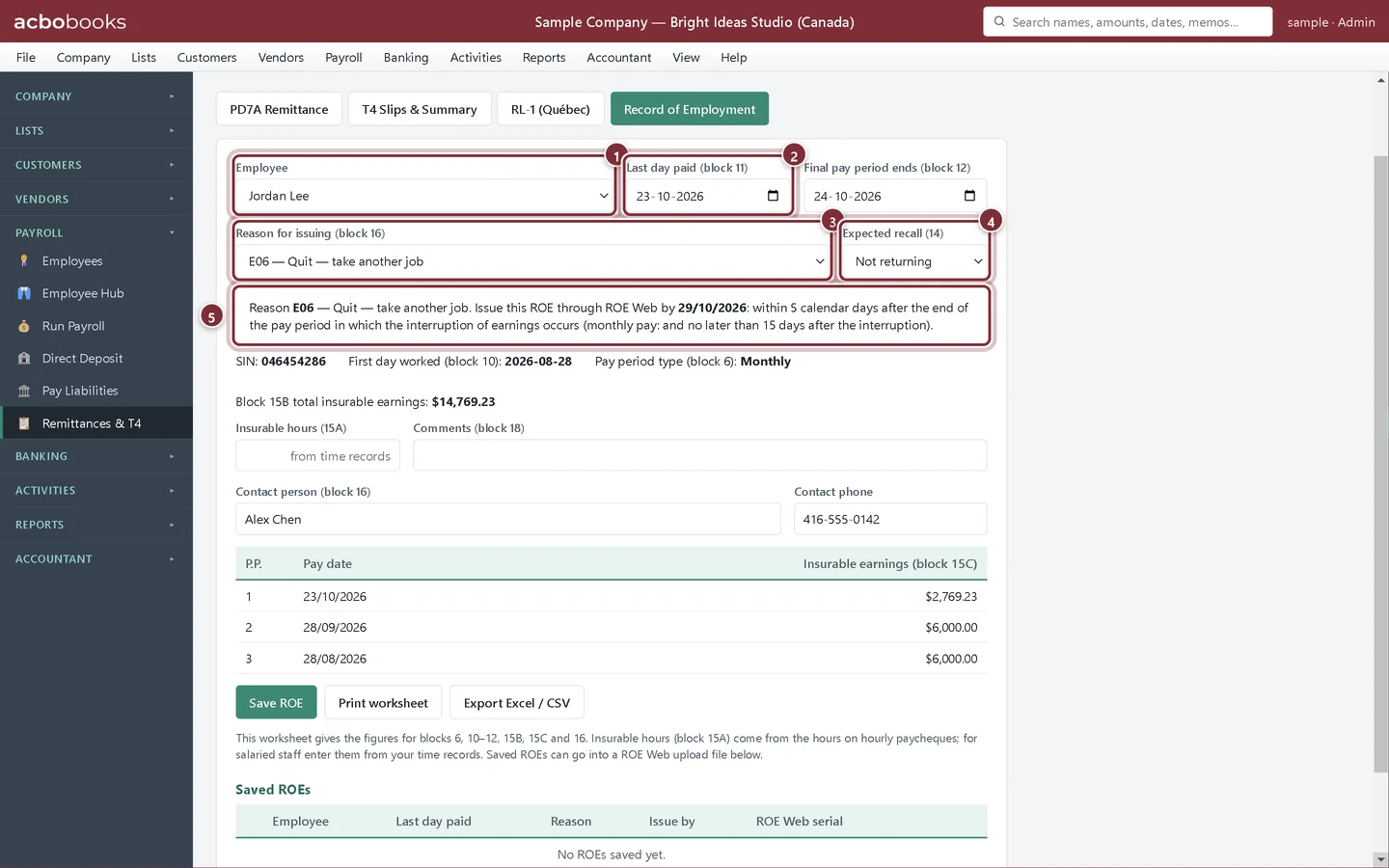
In Payroll → Remittances & T4 click Record of Employment. Choose the Employee and enter the Last day paid (block 11) and Final pay period ends (block 12). Pick the Reason for issuing (block 16) from the list of ROE Web codes, and the Expected recall (14).
- Employee.
- Last day paid (block 11).
- Reason for issuing (block 16): for example E06 — Quit — take another job, A00 for a layoff, or M00 for a dismissal.
- Expected recall (14): Unknown, Not returning, or Yes, on a date.
- The deadline to issue the ROE in ROE Web, worked out from the pay period.
Step 2: Check the earnings and save
Below the deadline AcboBooks shows the SIN, first day worked, pay period type and the block 15B total insurable earnings, with the insurable earnings for each pay period (block 15C). For salaried staff, type the Insurable hours (15A) from your time records. Check the contact person and phone, then click Save ROE.
Issue it in ROE Web
Step 3: Export the ROE Web file
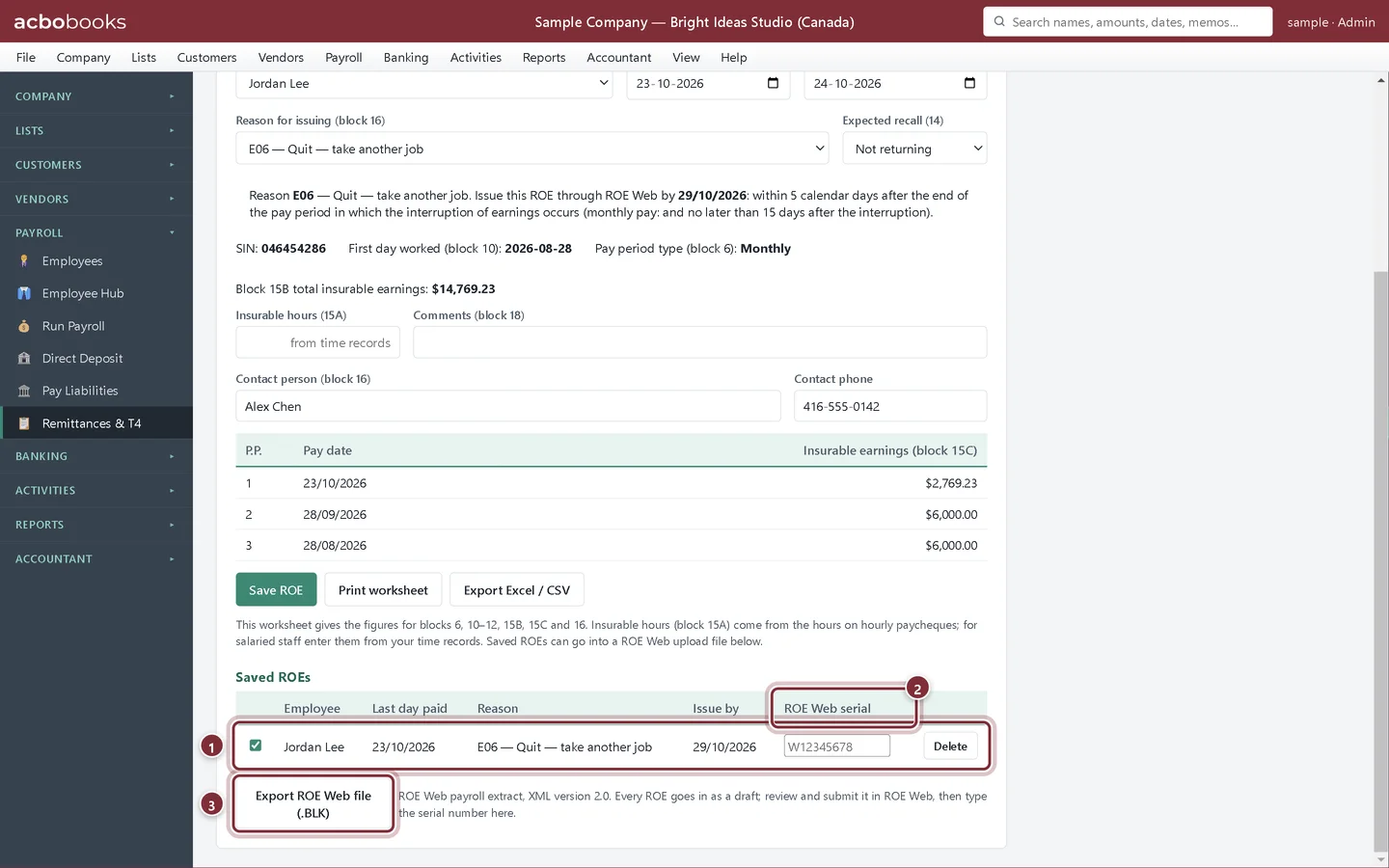
Saved ROEs are listed under Saved ROEs. Tick the ones to send and click Export ROE Web file (.BLK). Upload the file in ROE Web as a payroll extract file; each ROE arrives as a draft for you to review and submit. Then type the ROE Web serial number on the row.
- A saved ROE, ticked for the file.
- ROE Web serial: type the serial number once ROE Web issues the ROE.
- Export ROE Web file (.BLK) writes the upload file.
Recap
- You can prepare an ROE with the right reason code.
- You know the deadline AcboBooks shows.
- You can export a ROE Web file and record the serial number.
Questions
Can I print the ROE instead?
Print worksheet saves the figures as a PDF to type into ROE Web by hand. The official ROE is issued in ROE Web.
Where do insurable hours come from?
For hourly employees, from the hours on their paycheques. For salaried staff, type them from your time records.
Screenshots from AcboBooks 0.2.2 with the built-in sample company. Updated October 25, 2026. Your screens may differ slightly with another version or window size.