
In this lesson you will
- Read the PD7A amount for a period
- Record a remittance to the Receiver General
- Spot an overdue remittance
Before you start
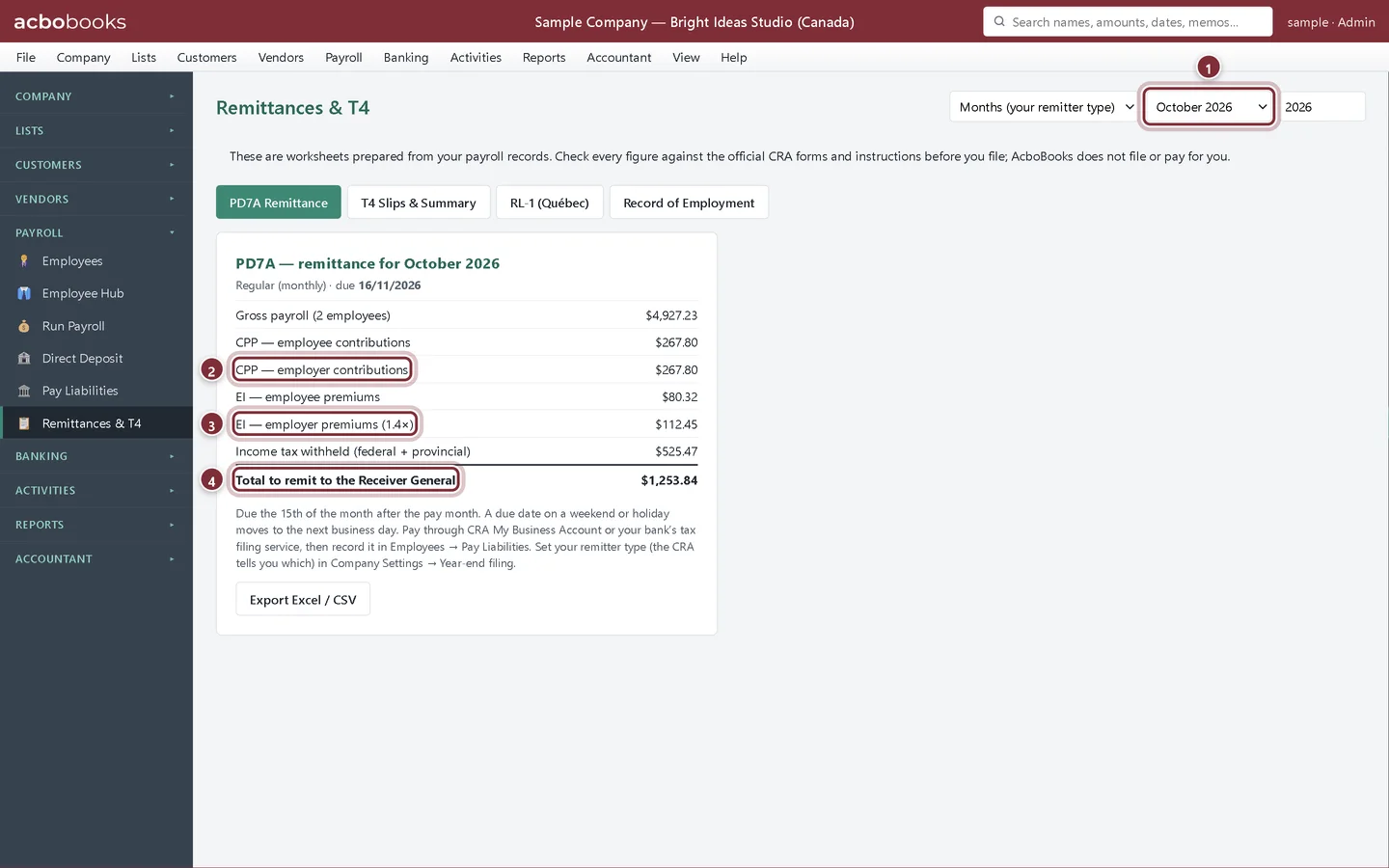
The PD7A worksheet
Step 1: Open the PD7A for a period
Choose Payroll → Remittances & T4. PD7A Remittance opens first. The first list follows your remitter type; pick the period in the second. The worksheet shows gross payroll and number of employees (the figures the PD7A asks for), each part of the remittance, and the due date.
- The remittance period, for example October 2026.
- CPP — employer contributions: the same as the employees' share.
- EI — employer premiums (1.4×).
- Total to remit to the Receiver General.
Record the remittance
Step 2: Find the CRA row in Pay Liabilities
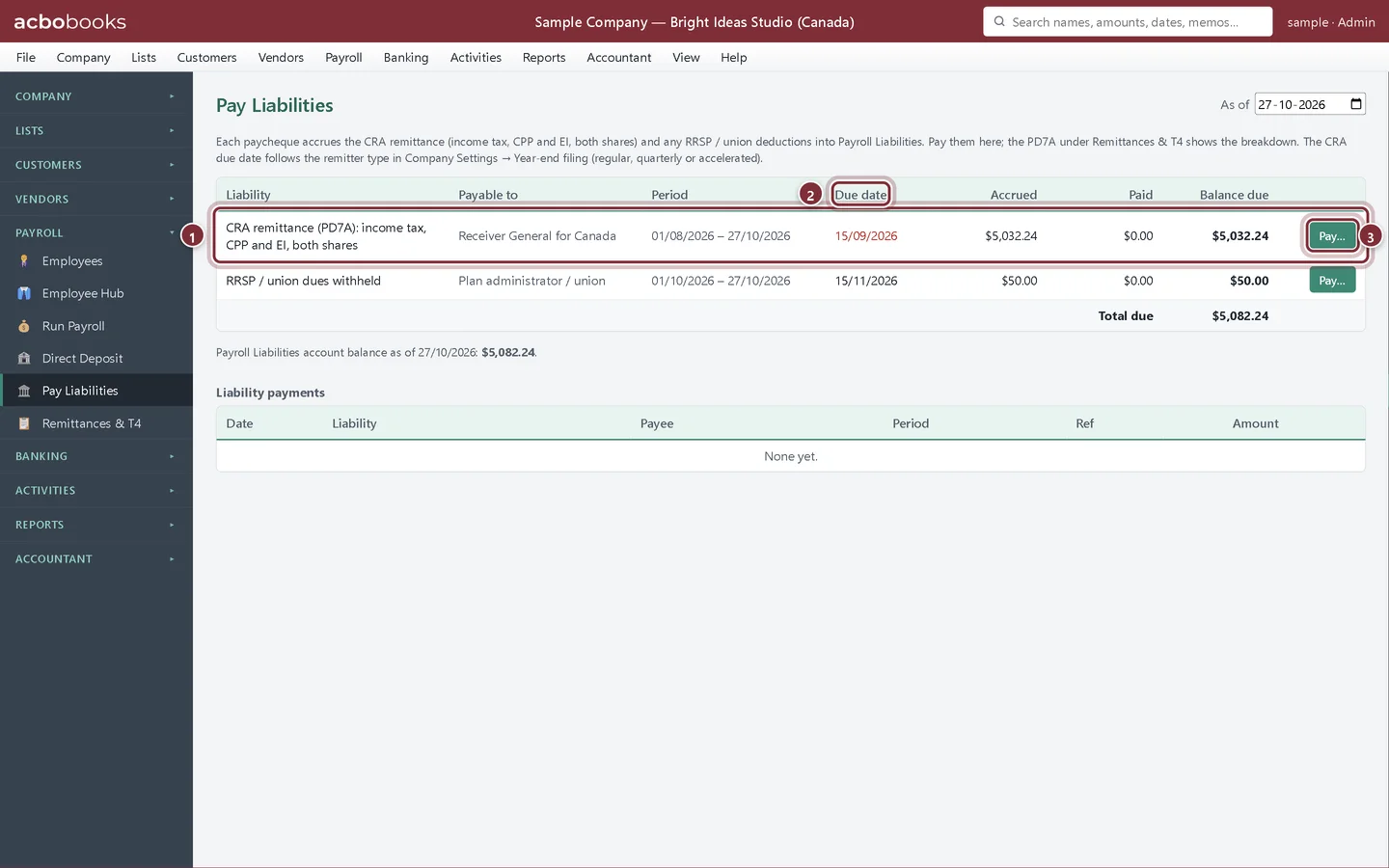
Pay the CRA through My Business Account or your bank. Then choose Payroll → Pay Liabilities. The CRA remittance row holds everything owed and not yet recorded as paid.
- The CRA remittance (PD7A) row: income tax, CPP and EI, both shares.
- Due date: red when it has passed.
- Pay… records the payment.
Step 3: Record the payment
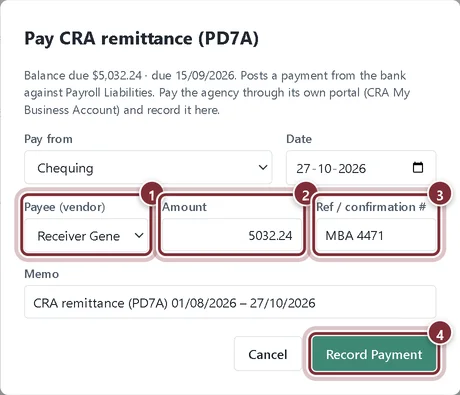
Click Pay…. Choose the bank account and the payee, check the amount and type the confirmation number. Click Record Payment.
- Payee (vendor): a vendor named Receiver General for Canada is picked for you.
- Amount: starts at the balance due.
- Ref / confirmation #: the CRA or bank confirmation number.
- Record Payment posts it against Payroll Liabilities.
Recap
- You can read the PD7A for any period.
- You can record a remittance in Pay Liabilities.
- You know where to see an overdue remittance.
Questions
Where do RRSP and union dues go?
They have their own row in Pay Liabilities (RRSP / union dues withheld), paid to the plan administrator or union.
Can I export the PD7A?
Yes. Export Excel / CSV under the worksheet saves the figures.
Screenshots from AcboBooks 0.2.2 with the built-in sample company. Updated October 25, 2026. Your screens may differ slightly with another version or window size.