
In this lesson you will
- Enter hours and overtime on a paycheque
- Read CPP, EI and income tax in the preview
- Override a figure when you need to
- Know what the employer owes on top
Before you start
Fill in the paycheque
Step 1: Choose the employee and enter the hours
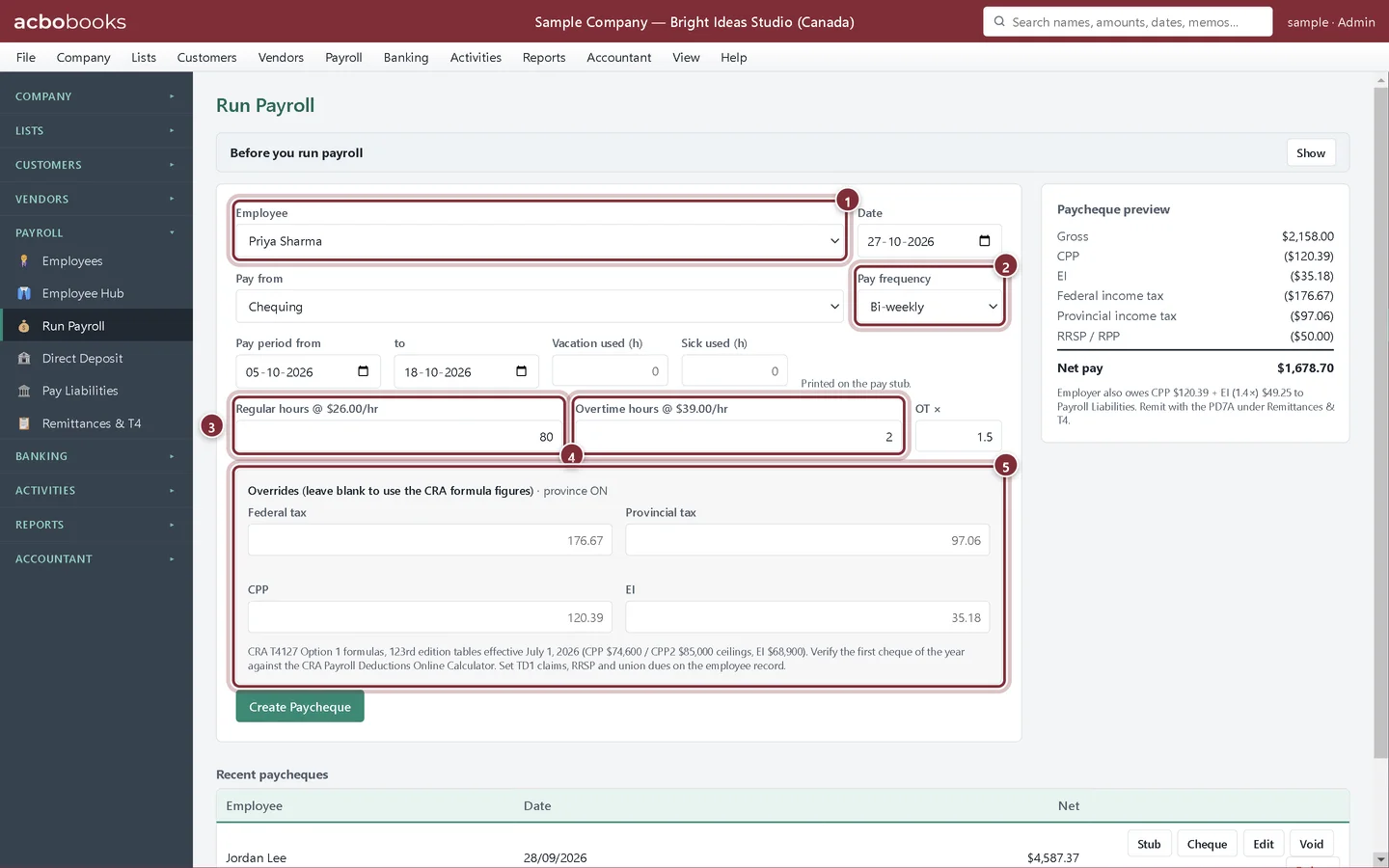
Choose Payroll → Run Payroll. Pick the Employee, the date and the bank account in Pay from, and enter the pay period. For an hourly employee type the Regular hours and Overtime hours; for a salaried employee type the Gross pay.
- Employee: the province and TD1 claim come from the employee record.
- Pay frequency: fills in from the employee; the formulas use it.
- Regular hours at the employee's rate.
- Overtime hours at the rate times OT × (1.5 unless you change it).
- Overrides: leave the boxes blank to use the CRA formula figures, or type a different amount.
Check the preview and post
Step 2: Read the paycheque preview
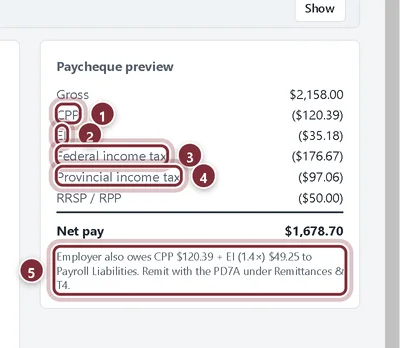
The preview on the right updates as you type. CPP and EI stop automatically when the employee reaches the year's maximum; the line then says max reached. A CPP2 line appears once earnings pass the first CPP ceiling.
- CPP: the employee's contribution.
- EI: the employee's premium.
- Federal income tax.
- Provincial income tax for the province of employment.
- What the employer also owes: its CPP and 1.4 times the EI, added to Payroll Liabilities.
Step 3: Create the paycheque
Click Create Paycheque. AcboBooks posts the wages and the employer's CPP and EI as expenses, the net pay out of the bank, and the source deductions into Payroll Liabilities for the next PD7A remittance. Under Recent paycheques, Stub and Cheque save the pay stub or a voucher cheque as a PDF, and Edit corrects a paycheque.
Recap
- You can write a paycheque for hourly or salaried staff.
- You can read CPP, CPP2, EI and income tax in the preview.
- You know when to use an override.
Questions
Why does my cheque differ slightly from the CRA calculator?
Rounding or a TD1 amount can make a few cents' difference. Check the employee's TD1 claims and pay frequency. If the CRA figure is right, type it in the override box.
Is there a field for a bonus?
The Canadian Run Payroll has no separate bonus fields. For a salaried employee, include the bonus in Gross pay.
Screenshots from AcboBooks 0.2.2 with the built-in sample company. Updated October 25, 2026. Your screens may differ slightly with another version or window size.