
How to print checks from your accounting software (US)
Voucher and standard check stock, what the MICR line is and why it matters, lining up the printer, numbering, and controls that keep printed checks safe.
8 min read · November 11, 2026
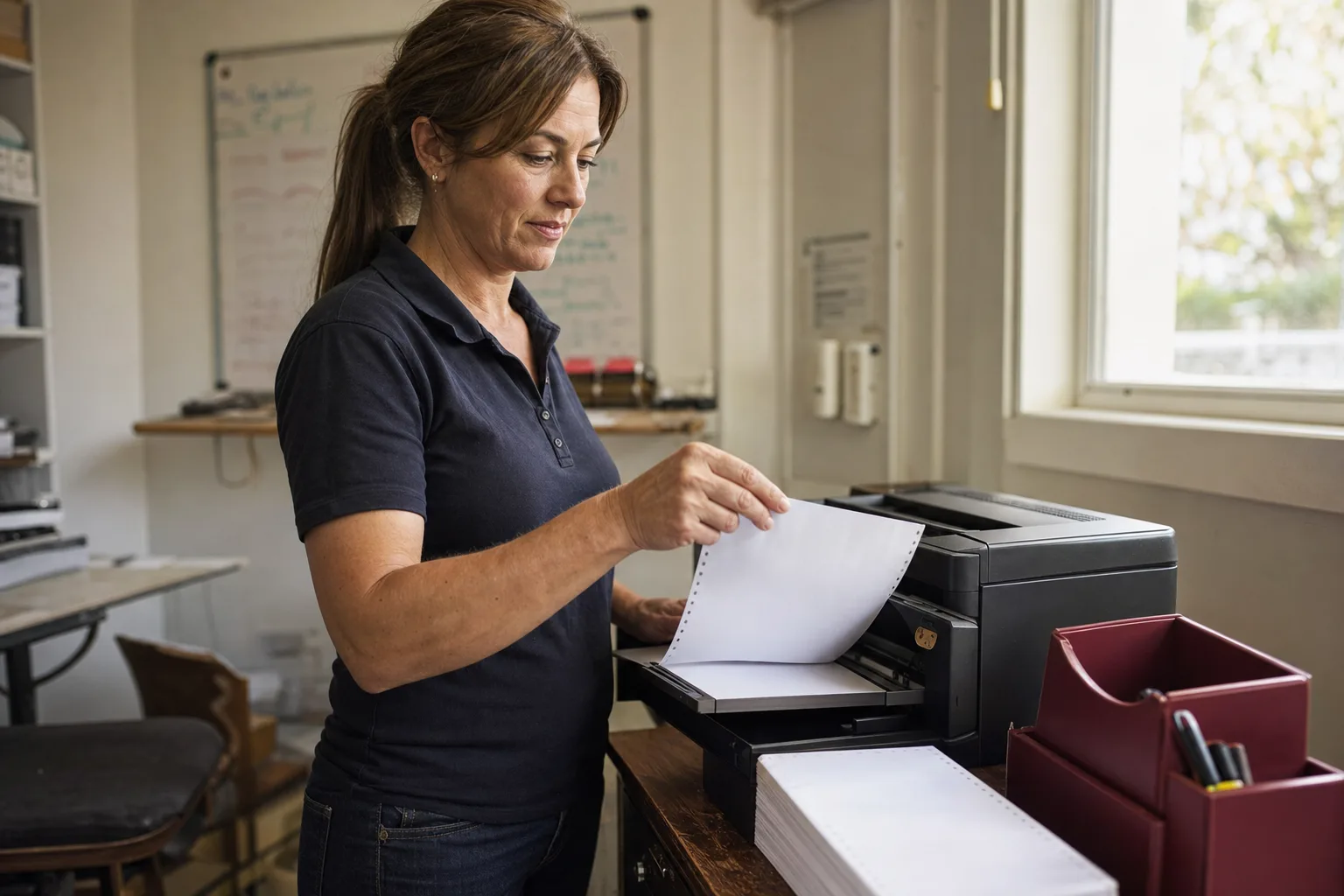
Why print checks at all
Plenty of vendors still want a paper check, and many small businesses still pay rent, subcontractors and some payroll that way. Printing checks from your accounting software, instead of writing them by hand, does three things: the amount on the check is exactly the amount in your books, the bill is marked paid at the same moment, and the check number is recorded without anyone retyping it. It is also faster than writing twenty checks by hand.
Choose your check stock
Business check stock for laser printers comes in a few standard layouts. Order the one your software prints on:
| Layout | What is on the page | Good for |
|---|---|---|
| Voucher, check on top | One check and two stubs (one to send with the check, one to keep) | Bill payments with invoice detail, payroll with a pay stub |
| Standard (three per page) | Three checks on one letter-size sheet | Many checks without detail; lowest cost per check |
| Wallet | Smaller checks with a stub at the side | Mostly written by hand; less common for laser printing |
Pre-printed stock arrives with your business name, your bank's details, the check number and the MICR line already printed, usually with security features such as a microprinted signature line and a background that shows erasures. Your software prints only the date, payee, amount, amount in words and memo into the blank spaces.
Order from a check printer you trust or through your bank, and check the proof carefully: the routing number, account number and starting check number must be exactly right.
The MICR line
The row of odd-looking numbers along the bottom of a check is the MICR line (magnetic ink character recognition). It is printed in a font called E-13B, used in the United States and Canada, and it holds the bank's nine-digit routing number between two transit symbols, then the account number and the check number (some banks put these last two the other way round). Bank equipment reads this line to route the check, so its position and print quality follow ANSI X9 banking standards, and a clear band along the bottom of the check is kept for it.
That is why most small businesses use pre-printed stock: the MICR line is printed by a check printer that does this all day. Printing it yourself on blank stock needs software that prints MICR, MICR toner, careful testing and your bank's agreement. Get any of those wrong and checks may be rejected or need to be keyed by hand at the bank.
Line up the printer
The first print on new stock is the one that goes wrong. Before you use real checks:
- Print a test sheet on plain paper. Good software prints a sample with the fields outlined.
- Hold it over a real check against the light (or a window) and see whether the date, payee and amount land in their spaces.
- Adjust in small steps. Most software lets you move everything right or down in fractions of an inch. Move, reprint, compare again.
- Print at actual size. If the print dialog scales to fit the page, every field moves. Turn off "fit to page" and print at 100%.
- Note how stock goes in. Face up or down, top edge first: mark the printer tray so nobody has to guess next time.
Once it lines up, it usually stays lined up on the same computer and printer. If you change printers, test again.
A clean print run
- Enter the bills or checks and mark them to be printed later, so they wait in a queue instead of being numbered one by one.
- Load the checks and note the number on the first one.
- Print the batch, confirming the starting number matches the first check in the printer.
- Look at every printed check before signing it: right payee, right amount, the number in your books matches the number on the paper.
- If a check jams or prints badly, write VOID on it, keep it, and record that number as void. Reprint on the next check, so the paper and the books agree. A missing checks report later shows any number you forgot.
- Sign, send, and file the office copy of the stub.
Keeping printed checks safe
- Store check stock locked away; in the wrong hands it is almost as useful as a signed check.
- Use a laser printer; toner bonds to paper and is harder to wash off than inkjet ink.
- Separate duties where you can: the person who prints checks should not be the only one who signs them or reviews the bank statement.
- Mail checks inside the post office or from a secure box, not from an unattended mailbox.
- Ask your bank about positive pay, where you tell the bank which checks you issued and it flags any check that does not match. Banks have their own file formats for this.
- Reconcile the bank account every month and look at the cleared check images for altered payees or amounts. See how to reconcile a bank account.
Printing checks in AcboBooks
In AcboBooks, tick "Print later" on Write Checks or Pay Bills and the check waits in Print Checks without a number. When you print, AcboBooks asks for the first check number, numbers the queued checks in order and takes them off the list. You can also reprint any earlier check. Checks are saved as one PDF, ready to print.
Choose the check paper for each computer: voucher checks (one a page, check on top, two stubs) or standard checks (three a page). On pre-printed stock AcboBooks prints only the date, payee, amount, amount in words and memo, plus the stub on voucher checks; a vendor's account number goes on the memo line when there is no memo. The alignment test prints on plain paper, and Move right and Move down adjust the position in hundredths of an inch. Print the PDF at "Actual size". On voucher stock, paychecks paid by check print with the pay stub. There is also a plain-paper layout that draws the whole check, which is useful as a record, but AcboBooks does not print a MICR line or bank details, so use pre-printed stock for checks you send. AcboBooks does not create positive pay files.
Frequently asked questions
Can I print checks on plain paper?
Only if your software prints a MICR line in magnetic toner, your bank accepts the result and the check follows the standard layout. AcboBooks does not print a MICR line, so for checks you send to payees, use pre-printed check stock.
Voucher checks or standard checks?
Voucher checks (one check and two stubs on a page) suit bill payments and payroll, because the stub shows what is being paid. Standard checks (three on a page) cost less per check and suit businesses that print many checks without detail.
Do I need a special printer?
Not for pre-printed check stock: any laser printer that feeds paper straight will do, and laser toner is harder to wash off than inkjet ink. Printing the MICR line yourself needs MICR toner.
Checks that print where the stock expects them
AcboBooks prints on voucher or three-a-page check stock with an alignment test and fine adjustments, numbers queued checks as they print, and puts the pay stub on voucher paychecks.
This article is general information, not tax, legal or accounting advice. Rules and dates change; check the official source or ask your accountant before acting.
In this article